
Guide · Opening invoices
Open an XML invoice
Open the InvoiceGlass viewer, select “Choose file”, and pick your .xml invoice. The viewer reads the file on your device without uploading it.
Open invoice viewerReviewed
Open the file in the viewer
- Save the
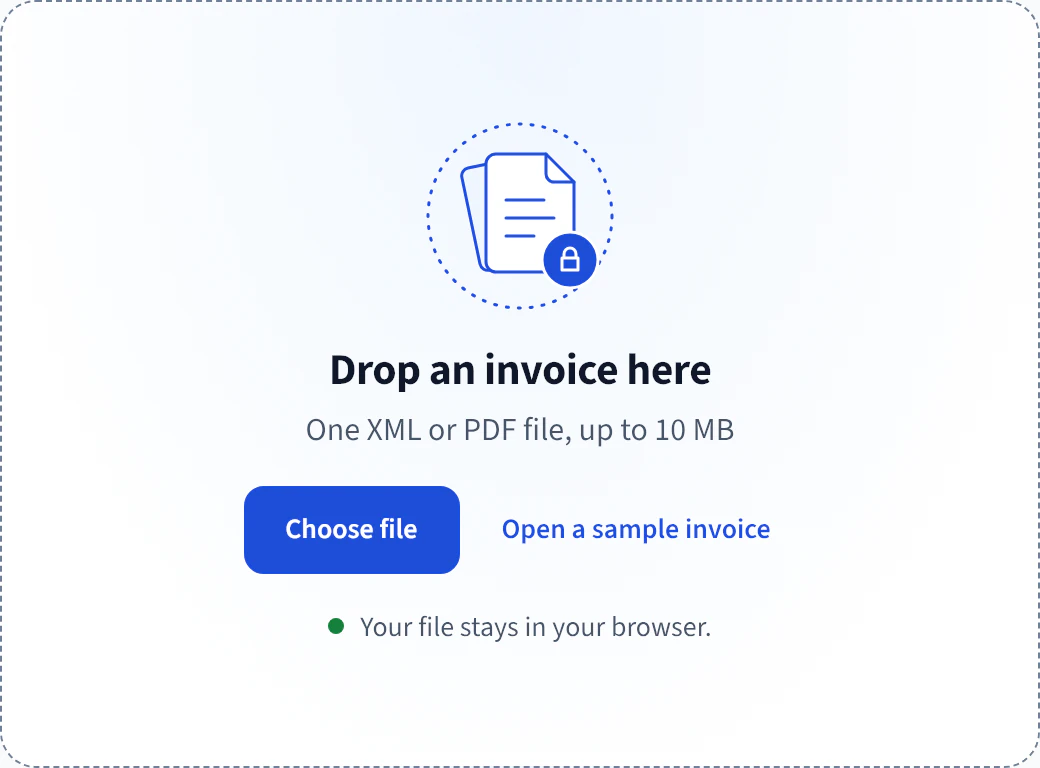
.xmlattachment from your email or download it from the sender’s portal. An email preview may show XML tags or appear blank. - In the InvoiceGlass viewer, select Choose file and pick the saved XML. You can also drop the file on Drop an invoice here.
To try the viewer with a sample first, select Open a sample invoice. Then select Close invoice to return to the file picker.
Find the details you need
Start with the invoice number, issue date, seller and buyer. Then compare the line items with what you ordered. Look for Amount due and, if provided, the Due date and Payment details.
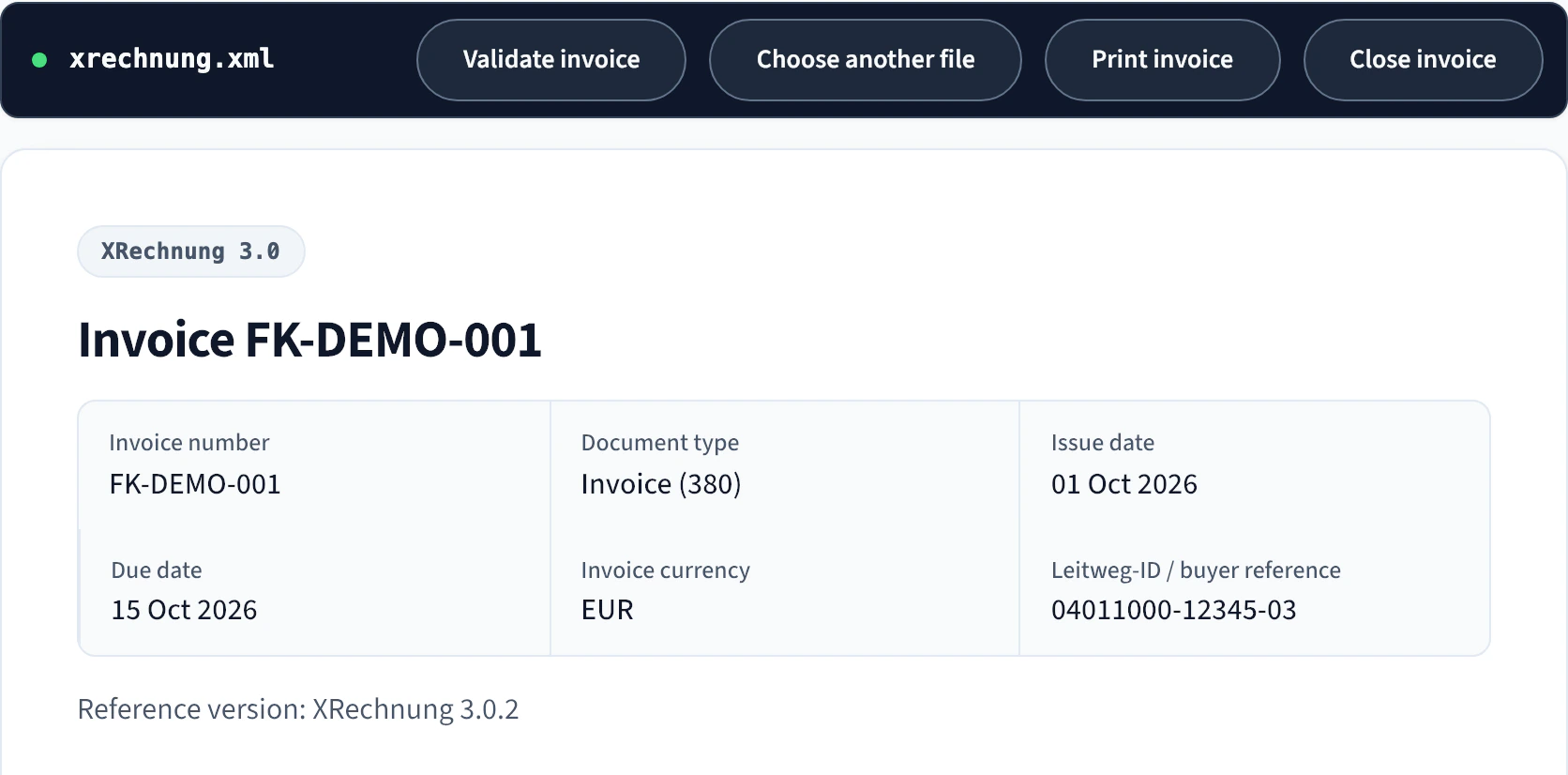
Keep the original XML as you received it. If you want a readable copy alongside it, use Print invoice.
If the file won’t open
Download the attachment again and make sure you picked the invoice XML. A file ending in .xml can also contain a different kind of document, such as an order. If the invoice still won’t open, ask the sender to resend the original invoice XML.
When the XML is sent
You can stop once you’ve read the invoice. For a separate rules check, Validate invoice opens the validation screen. Choosing Send XML and validate there sends the invoice XML to InvoiceGlass for processing in memory.